How to use Monet
Do this, then this, then hand the pack to your agent.
Monet is the review loop for AI-built websites. You create a draft with an agent, give Monet a real URL, mark the exact changes, export a Handoff Pack, send that pack back to the agent, and verify the new preview. Once the preview URL exists, the review itself is portable: capture and annotate on the iPad wherever you are, and let the dev machine sleep until the pack lands.
Choose your Monet app or program
Monet has an iPad App and a Desktop program.
The review loop is the same, but the preview URL rules are different. Pick the app or program first, then decide whether the agent's preview URL is usable as-is.
iPad App
Available nowInstall Monet from the App Store. The iPad App is best when you want to review with touch or Apple Pencil, capture a deployed site, and export a Handoff Pack from iPad.
Preview rule
The iPad must be able to reach the URL. Production, staging, Vercel previews, LAN URLs, and safe tunnels can work. A Mac's localhost URL will not work on an iPad unless you convert it, though the iPad App running on that same Mac can use it directly.
First project free; Monet Pro is billed by Apple through the App Store. Separate from the Desktop program.
Desktop program for Mac and Windows
Available nowUse the Desktop program when you want Monet beside the agent, repo, browser, and dev server on the same computer.
Preview rule
Localhost and 127.0.0.1 can work when the Desktop program is running on the same machine as the preview server. Deployed previews are still best for stakeholder-like review.
Billed through Paddle. Separate from iPad.
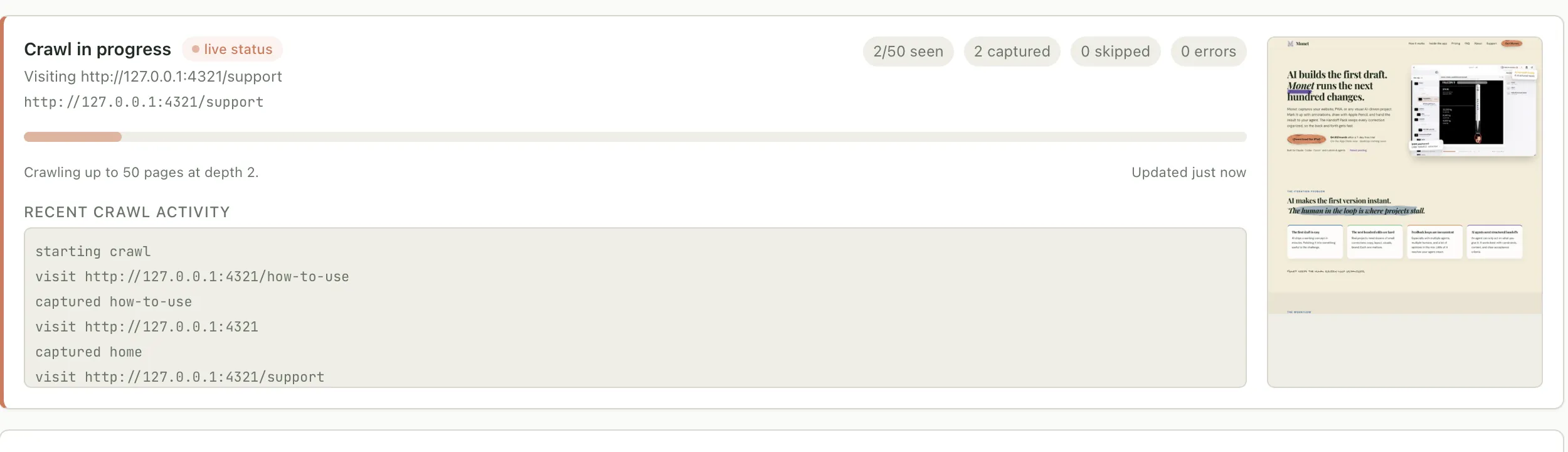
127.0.0.1from the same computer. This is the direct local workflow the iPad App cannot use without a deploy preview, LAN URL, or tunnel.Before you start
You will need these four things.
A Monet app or program
Use the iPad App, the Desktop program for macOS and Windows, or the free Omarchy edition on Linux (see iammonet.com/omarchy).
A capturable preview
The iPad App needs a URL the iPad can reach. On an Apple silicon Mac, the same app can use localhost. The Desktop program can use localhost on the same machine.
A coding agent
Use Claude Code, Codex, Cursor, ChatGPT, Gemini, Grok, or another agent that can read instructions and edit the repo.
A way to deploy again
You need a repeatable preview loop so Monet can capture the site before and after the agent changes it.
First decision
Do you have a URL Monet can visit?
If the answer is no, pause the review and create a preview URL first. Monet should inspect the same page a customer, client, or stakeholder can load.
I already have a public or staging URL
Use that URL directly.
- 1Open Monet.
- 2Create or open a project.
- 3Paste the URL into the capture field.
- 4Capture the site and start marking changes.
The project already lives on GitHub or Vercel
Start the project straight from the source.
- 1In the iPad App, tap New Project, then start from GitHub or Vercel.
- 2Sign in once and pick the repo or project.
- 3Monet fills in the name and production URL for you.
- 4Capture and start marking changes.
The agent only built it locally
Choose the right app or program before you copy the URL.
- 1For the iPad App, convert the local server into a deploy preview, LAN URL, or safe tunnel.
- 2For the Desktop program, use localhost directly when Monet is running on the same computer as the preview server.
- 3Open the converted or local URL in the matching Monet app or program.
- 4Capture or crawl the preview.
The preview requires a login
Make the logged-in page capturable.
- 1Sign in inside Monet if the site supports browser login.
- 2Use a preview share URL if your host provides one.
- 3For protected previews, add the bypass token or protection details in the project source settings.
- 4Capture only the pages you are allowed to review.
Example
The agent says: preview is live here.
This is the common handoff from Claude Code, Codex, Cursor, or another coding agent: it starts a dev server and gives you a link. Treat that link as the start of the Monet project, but only after you know which Monet app or program will capture it.
Agent message
Preview is live here:
http://127.0.0.1:4321/how-to-use/#workflow
Important
127.0.0.1and localhostmean "this device." In the iPad App, that address points to the iPad, not the Mac, PC, or cloud machine where the agent is running. In the Desktop program, it can work when Monet is running on that same computer.
Best for real review
Deploy preview
Push the branch to Vercel or another host and use the generated preview URL. This is closest to what a customer will load.
Fast local option
Local network URL
Run the dev server on 0.0.0.0 and use your Mac or PC's LAN IP from the iPad. Only use this on a trusted network.
Temporary bridge
Tunnel URL
Use a tool such as cloudflared or ngrok when you need Monet to reach a local server briefly.
Read the agent's preview message
If the agent says the preview is live at a URL, copy it, but inspect the hostname before pasting it into Monet.
Check whether Monet can reach it
A localhost or 127.0.0.1 link is local to the machine running the agent. It can work for the Desktop program on that same machine, and for the iPad App running on an Apple silicon Mac. On an actual iPad, convert it first.
Convert local preview if you are using the iPad App
Use a deploy preview, a trusted local-network URL, or a temporary tunnel. Then test that URL from Safari on the iPad before opening Monet.
Create or update the Monet project
Open Monet, create a project for the site, paste the reachable URL, and choose whether to capture one page or crawl the linked pages.
Keep the project tied to the preview
Name the project after the product or branch, then re-capture the same preview after the agent ships fixes.
Ask the agent for a first draft
Start with a working site, not a design debate. The first output should be something you can run or deploy.
Do this
- ✓Tell the agent the goal of the page or feature.
- ✓Ask it to build the first usable version.
- ✓Ask it to include clear setup and run commands.
- ✓Get the project into a repo or branch you can deploy.
You need
A working repo, branch, or project folder.
Example instruction
Build the first draft of the marketing page. Keep it simple, make it runnable locally, and include the commands I need to preview it.
Turn the draft into a reachable URL
Monet reviews what its app or program can load. The iPad App needs an iPad-reachable URL; the Desktop program can use local previews on the same machine.
Do this
- ✓Run the app locally and confirm it loads.
- ✓If you are using the iPad App, deploy a preview branch or create a safe tunnel.
- ✓If you are using the Desktop program, keep the preview running on the same Mac or Windows machine.
- ✓Open the review URL in a normal browser.
- ✓Fix basic build or routing errors before opening Monet.
You need
A URL that your chosen Monet app or program can capture.
Example instruction
Give me a Monet review URL. If I am using the iPad App, make it reachable from the iPad. If I am using the Desktop program on this machine, tell me the localhost URL.
Capture the site in Monet
Create a Monet project from the URL so your review is tied to real pages, screenshots, crops, and DOM context.
Do this
- ✓Open the iPad App or Desktop program you are using.
- ✓Create a project for the site.
- ✓Paste the URL.
- ✓Capture the page or crawl the site.
- ✓Wait until the screenshots and page map are ready.
You need
A Monet project with captured pages.
Annotate exactly what should change
Each note should tell the agent what to change, where it is, and how you will know it is done.
Do this
- ✓Draw a box around the problem area.
- ✓Write the desired change in direct language.
- ✓Add acceptance criteria when the change could be subjective.
- ✓Mark priority so the agent knows what matters first.
You need
A set of specific review notes, not a vague critique.
Example instruction
Good annotation: Move this CTA below the hero paragraph on mobile. Done means the button is fully visible at 390px wide and no text overlaps it.
Export the Handoff Pack
The Handoff Pack is the source of truth for the agent. It carries the screenshots, crops, selectors, notes, and review intent.
Do this
- ✓Review the annotations one last time.
- ✓Export the Handoff Pack from Monet.
- ✓Save it somewhere the agent can access.
- ✓Keep the pack attached to the repo task or chat thread.
You need
A structured Handoff Pack ready for Claude Code, Codex, Cursor, or another agent.
Give the pack to the agent
Do not ask the agent to redesign everything. Ask it to implement the annotated changes only.
Do this
- ✓Attach the pack folder or paste the pack summary.
- ✓Tell the agent to treat the pack as the source of truth.
- ✓Ask it to make a focused branch.
- ✓Require checks and a short annotation-by-annotation summary.
You need
A focused code change you can review.
Example instruction
Use the Monet Handoff Pack as the source of truth. Implement the annotated changes only. Create a branch, run the project checks, and summarize what changed by annotation id.
Deploy again and verify
The loop is not finished when the agent says it is done. It is finished when the changed URL passes review.
Do this
- ✓Deploy the agent's branch to a new preview.
- ✓Re-capture that preview in Monet.
- ✓Compare the marked regions against the acceptance criteria.
- ✓Send any missed annotations back to the agent.
- ✓Merge only when the review passes.
You need
A verified preview, not just a completed task message.
Agent handoff
One Handoff Pack. Same instruction for every agent.
Claude Code, Codex, Cursor, ChatGPT, Gemini, Grok, and custom agents can all use Monet when they can read the pack or receive its contents in context. Monet does not create a different pack per agent. The handoff contract stays the same.
The reviewer does not have to be the developer, either. Export the .monetproj and send it to whoever owns the opinion: founder, client, PM. They open it in Monet, annotate, and send it back. The pack your agent receives is their review, unfiltered.
Universal instruction
Use the Monet Handoff Pack as the source of truth. Implement the annotated changes only. Run the project checks. Summarize what changed by annotation id. Stop and ask if an annotation is ambiguous.
Use the pack as source of truth
Give Claude Code, Codex, Cursor, ChatGPT, Gemini, Grok, or another coding agent the same Handoff Pack and the same instruction.
Keep the agent scoped
Ask the agent to implement only the annotated changes. The Handoff Pack is not a prompt to redesign the whole site.
Require a review summary
Have the agent summarize what changed by annotation id, including anything it could not safely complete.
Verify the rendered result
Deploy or run the updated preview, then re-capture it in Monet. The loop ends when the rendered page matches the annotations.
Setup examples, same Handoff Pack.
These pages are about getting the preview URL and exported files into the right place. They do not change the pack or the agent instruction.
Hermes Agent setup
Ask Hermes to package the pages that matter, review the Agent Preview in Monet, and send the Handoff Pack back for it to ship.
Claude Code setup
Put the exported Handoff Pack where Claude Code can read it beside the repo, then use the universal instruction.
Codex setup
Attach the Handoff Pack to the Codex task or keep it in the workspace, then ask for a scoped branch and checks.
Cursor setup
Drop the Handoff Pack into the open workspace or paste the summary into Cursor Agent with the repo loaded.
Vercel preview setup
Use a Vercel preview deployment when the iPad App needs a real URL for a draft that started locally.
Finish line
Done means verified in Monet.
Monet does not write code and does not replace your coding agent. It gives the agent clearer instructions, then gives you a way to confirm the result. Each pass stays in the project, so the next review starts from a record of the last one instead of from memory.
Merge checklist
- ✓The preview URL loads.
- ✓Every high-priority annotation changed.
- ✓Mobile and desktop captures still fit.
- ✓The agent ran the project checks.
- ✓You re-captured the final version in Monet.